
WHAT IS
3D RAD?
CLICK HERE
TO FIND OUT!
CarAI
The CarAI object will drive your vehicles along a pre-defined path, trying to avoid collisions with obstacles and other vehicles by applying artificial intelligence algorithms.
Optionally, the A.I. alogorithms can be 'reversed' or 'mixed' to achieve different behaviors like trying to run into specified targets or drive away from certain objects, either forward or in reverse.
To use this object in your project, the first step is setting up all vehicles in the project so that they can be driven by using human input controls.
This is necessary because the CarAI object, just like a human being, cannot drive a car that doesn't provide proper handling.
Once you have tweaked your cars, for each vehicle you want to control, just add one CarAI object to your project.
Then link it to the car object to control, to the Path to follow and to all obstacles to avoid. Please see this tutorial for details.
After you have linked the CarAI object to all these elements, double-click the CarAI object in the Object List to open the following property dialog:
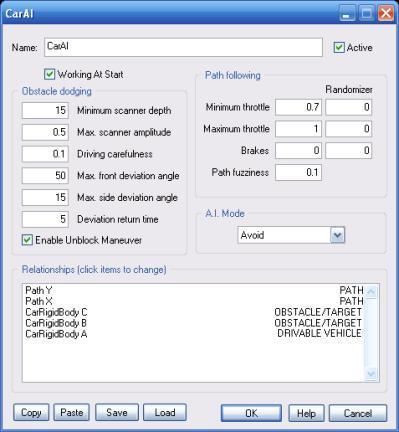
If this option is not checked, artificial intelligence (and the controlled vehicle) will only operate after the object is started by another object, like for example EventOnInput.
Setting this value too big may cause unsteady driving. Setting it to low may prevent the vehicle from avoiding obstacles.
Setting this value too big may cause excessive reaction. Setting it to low may prevent the vehicle from avoiding contacts.
You can prevent the controlled vehicle from going full-throttle on straights by setting this factor to any value below 1. Minimum value is -1. Maximum value is 1. Use negative values to make the car go reverse.
If this factor is above 0, the controlled vehicle will apply the brakes when an obstacle is detected. Minimum value is -1. Maximum value is 1.
If this factor is above 0, the controlled vehicle will follow a slightly different path from the one defined in the linked Path object. The bigger the value, the bigger the alteration. Maximum value is 1.
If these factors are above 0, the corresponding parameters on the left (Minimum throttle, Maximum throttle and Brakes) will be randomized by applying a variation.
For example, if you set Maximum throttle to 0.7 and its randomizer value to 0.3, when the simulation is started the actual Maximum throttle used will be between 0.4 and 1.0.
Note that final value is still capped within its range. So, for example, if you set Maximum throttle to 1.0 and its randomizer value to 0.3, resulting value will be between 0.7 and 1.0.
This list defines how the CarAI object relates to the objects linked to it. The following relationship types are supported:
Do not set the road/terrain object as an obstacle, or your AI vehicle will get really confused!
For information about the remaining controls, please click here.
The following internal parameters can be accessed by using event objects like EventOnValue or Script:
