WHAT IS
3D RAD?
CLICK HERE
TO FIND OUT!
ValuePrint
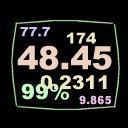
With this object you can display the internal parameters of any object, or a variable from a script. Digit size, color, transparency, screen location and format are definable.
Add the ValuePrint object to your project and link it to the object you want to read the values from.
If the ValuePrint object is also linked to a camera, run-time it will be rendered into the viewport for that camera only. This is typically useful when you add split-screen functionality to your projects.
You link objects together in the Object List (left side of 3D Rad main screen), by selecting an object and then checking the other objects you want to link to it.
To configure the ValuePrint object, double-click it in the Object List to open the following property dialog:
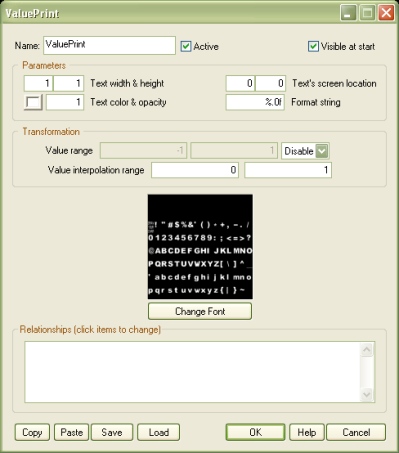
Any size is allowed for the digits, but values bigger than 2.0 may affect rendering quality.
NOTE: don't forget that you can visually set the digits location by clicking and dragging the mouse in the Virtual Editor window, without opening the property dialog every time.
The screen center is at 0,0. Left/right margins are at -16 and 16. Top/bottom margins are at 12 and -12.
NOTE: don't forget that you can visually set the digits size by right-clicking and dragging the mouse in the Virtual Editor window, without opening the property dialog every time (you can stretch the digits by right-clicking and dragging while holding the [Ctrl] key pressed).
Click the color button to open the color picker. Opacity must be between 0.0 (invisible) and 1.0 (fully visible).
This string specifies the visualization format of the printed value. Examples:
Before printing, the source value can be clamped or wrapped within a specified range. For example, if the source value is 48 and the range is 50,100, in clamp-mode the printed value is 50 and in wrap mode it is 98.
Before printing, the source value can be transformed by using two interpolation values as reference. Examples:
This list defines how the ValuePrint object relates to the object linked to it. The following relationship types are supported:
Please see linked object's documentation (INTERNAL PARAMETERS section) for details on the internal parameters it supports.
Whether to show the printed value when the project is run. If this option is unchecked, you will have to link this object to an event object like for example EventTimer in order to visualize it.
The first step is duplicating the
C:\3D Rad\3DRad_res\
objects\ValuePrint\data\default
folder. Give the cloned folder a proper name (eg MyFont).
Duplicate the
C:\3D Rad\3DRad_res\
objects\ValuePrint\data\index\default.jpg
file and give it the same name as the cloned folder (eg MyFont.jpg).
Open the existing fonts.dds file in the
C:\3D Rad\3DRad_res\
objects\ValuePrint\data\MyFont
folder, by using any paint software supporting the .dds file format.
Modify the character images and save the .dds file back.
In the property dialog for the ValuePrint object you can now click the Change button and double click the new skybox thumbnail.
The .wid file in the data folder specifies the relative width of each character in the set. You can use a text editor to adjust the values for your custom font.
For advanced modifications, please keep in mind that the .x files in the data folder can also be edited. They are 3d models (simple quads really) that use the fonts.dds file as texture.
You can replace them with any other 3d model in .x file format, as long as they all use the fonts.dds texture.
You can remove the .x files belonging to characters that are not present in your custom font. This will make font loading faster for your 3D Rad projects.
The following internal parameters can be accessed by using event objects like EventOnValue or Script:
