WHAT IS
3D RAD?
CLICK HERE
TO FIND OUT!
Transform
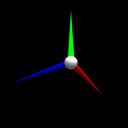
You can use the Transform object to apply run-time translations, rotations and scaling to the objects linked to it.
Transformations are applied once, when the Transform object is started by an event object or a script. The Transform object will immediately stop after that.
Continuous transformations can be achieved by starting the Transform object at every processing loop.
When the Transform object is reset, all objects linked to it will be set to their initial position.
For an example of usage, please see the TransformDemo sample project.
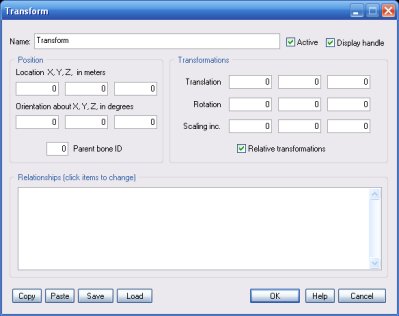
These three values are the X, Y, Z increments to add to the linked object's location. The values are in meters.
When the Transform object is started, objects linked to it will be translated by the specified amounts along the Transform object's local exes (the red/green/blue segments of the object's handle, in the Virtual Editor). If the Relative transformations option is un-checked, the translations will be along the world axes instead.
These three values are the X, Y, Z increments to add to the linked object's orientation. The values are in degrees.
When the Transform object is started, objects linked to it will be rotated by the specified amounts about the Transform object's local exes. If the Relative transformations option is un-checked, the rotations will be world-relative, about the destination object center.
These three values are the X, Y, Z increments to add to the linked object's scaling.
When the Transform object is started, objects linked to it will be resized based on the new scaling. Note that scaling is always target-object-relative, even when the Relative transformations option is checked,
Check this option to visualize the Transform object handle run-time.
This list defines how the Transform object relates to the objects linked to it. The following relationship types are supported:
Please keep in mind that setting the position of a RigidBody object (or any other object supporting collision detection, like Terrain, Car etc) causes physics simulation to momentarily stop working.
If a RigidBody object is moved by using the Transform object to a position where it is in contact with another object supporting collision detection, the simulation may fail and the collision may not be detected or may cause computation errors and crashes.
