
WHAT IS
3D RAD?
CLICK HERE
TO FIND OUT!
Switch

The Switch object allows you to replace an object with another, run-time, as a consequence of game events.
It can also be used to switch between two specified animation sets of a SkinMesh object, with smooth transition between the two (animation blending).
The switching is performed once, when the Switch object is started by an event object or a script. The Switch object will immediately stop after that.
Hiding the Switch object will also hide the two objects (or the animated SkinMesh) linked to it. Showing it will only show the item which is currently switched on.
When the Switch object is reset, the primary object is shown (or the primary animation set is selected) and the secondary object is hidden.
For examples of usage, please see the SwitchObjectDemo and the SwitchAnimSetDemo sample projects.
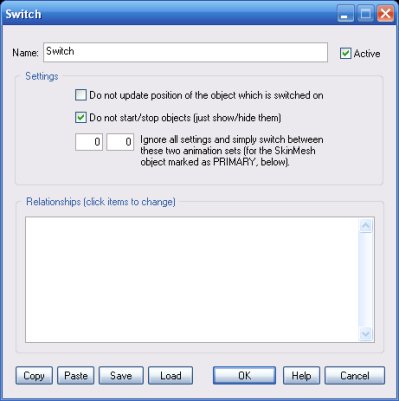
When checked, the object which is switched on will not be automatically placed to the position of the object which is switched off.
This setting is recommended when your project manages the position of the object some other way, for example when the objects are car-body SkinMeshes attached to a Car.
When checked (default) objects linked to the Switch object are simply shown/hidden. Otherwise they are also started/stopped when the switching action is performed.
When two different animation sets are specified, the Switch object will consider the primary object as an animated SkinMesh. The switching action will be between the two animation sets specified.
IMPORTANT! The initial animation set to use will be the one specified in the property dialog for the SkinMesh object, not the animation set specified here as primary.
This list defines how the Switch object relates to the objects linked to it. The following relationship types are supported:
NOTE: setting multiple objects as primary/secondary is possible and useful in some cases, but it's not guarateed to always work as expected. For example, all objects will switch to the same location when turned on, unless the Do not update position... option is checked.
