
WHAT IS
3D RAD?
CLICK HERE
TO FIND OUT!
Sprite

A customizable 2d-graphics object for your projects.
You can use the Sprite to add static/animated screen elements to your works, like for example a sight in a FPS game, the rotary dial of a speedometer in a racing game, the features of the cockpit in a flight simulator, the scrolling background of a 2D game and so on.
You can animate a Sprite by changing its orientation/location run-time with the Script object.
If the Sprite object is linked to a camera in the Object List, run-time it will be rendered into the viewport for that camera only. This is typically useful when you add split-screen functionality to your projects.
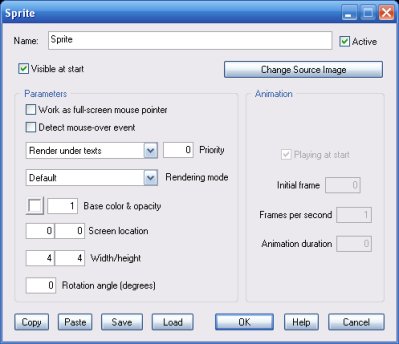
If this option is checked, the sprite will be bound to mouse movements. This feature is typically used to implement a custom mouse pointer for compiled projects running in full-screen mode.
If the project is not compiled or running in windowed mode, this option disables the sprite object.
If this option is enabled, the Sprite object is checked 60 times per second to see if it is under the mouse.
If it is, an internal parameter for the Sprite object is set to 1.
Please see the INTERNAL PARAMETERS section below for details.
Note: the whole original sprite-image is used as a reference. Therefore any transparent pixels in the image will raise the mouse-over flag.
You can set the general render priority group for the sprite.
There are 3 groups currently: render the sprite behind texts, over texts or as a background (i.e. behind all 3d objects in the scene except the SkyBox, if present).
The value next the drop-down list determines the rendering priority among sprites in the same general priority group. This value must be an integer. Negative values are supported.
Various render modes are supported, including 'burnout', typically used for flares and similar effects.
Click the color button to open the color picker. Opacity must be between 0.0 (invisible) and 1.0 (fully visible).
Screen position of the image center. The screen center is at 0,0. Left/right margins are at -16 and 16. Top/bottom margins are at 12 and -12.
NOTE: don't forget that you can visually set the sprite location by clicking and dragging the mouse in the Virtual Editor window, without opening the property dialog every time.
Any size above zero is allowed. To fill the entire screen, set width/height to 32/24 and screen location to 0,0.
NOTE: don't forget that you can visually set the sprite size by right-clicking and dragging the mouse in the Virtual Editor window, without opening the property dialog every time (you can stretch the sprite by right-clicking and dragging while holding the [Ctrl] key pressed).
Sprite orientation, in degrees.
The Sprite object supports frame-based animation as a sequence of images rendered one after the other.
The following controls are enabled if a sequence of images is defined for the Sprite, as described in the Using image sequences as animated sprites section, below.
Note that the animation will re-start from the beginning only after the Sprite object is 'reset' by another object or a script.
STATIC SPRITES
Save your image files to the
C:\3D Rad\3DRad_res\objects\Sprite\Data\
folder.
To assign one image to a sprite, in the property dialog for the sprite, click the Change Source Image button and double click the image thumbnail.
Note that the image browser will only display a thumbnail of the image if your Windows installation supports its format.
For example, in order to display a thumbnail for images in .dds format you will likely have to install the NVidia DDS Thumbnail Viewer (free) or another similar utility.
If you want the sprite to show some per-pixel transparency (like the default one) you must use an image file format supporting alpha information (.dds, .png or .tga).
Supported image formats are: .dds, .png, .tga, .jpg, .bmp.
ANIMATED SPRITES
The first image of the sequence must be saved to the data folder as described above (USING YOUR OWN IMAGES AS STATIC SPRITES).
The remaining images must be saved into a sub-folder of the data folder.
The name of the sub-folder must be the same as the initial image file (omitting the extension).
The images in the sub-folder must be named by using 4-digit numbers (for example 0001.jpg, 0002.jpg, etc).
The extension of the images in the sub-folder must be the same as the initial image (the one saved outised the subfolder).
For an example, please see 'animation.jpg' and 'animation' subfolder, in the C:\3D Rad\3DRad_res\objects\Sprite\Data\ folder.
To see this animation in action please see the demo project called SpriteAnimation.3dr.
The following internal parameters can be accessed by using event objects like EventOnValue or Script:
