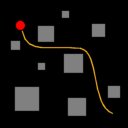
The PathFinder object is a guide for other objects that can move and follow 'targets' (like the Character object, the CarAI object or a user
created script). The PathFinder object location is the goal to reach.
Run-time, the PathFinder object temporarily places itself at strategic locations on
your project's terrain so that, the follower object, by moving towards it, will ultimately reach the goal going around
static and moving obstacles (like a boulder suddenly falling on the path).
For a demonstration, please see the
PathFinderDemo project, included to the 3D Rad installation.
The A.I. is designed to work reasonably well with moving target locations, as long as the speed is moderate.
Typical case is when the PathFinder object is attached to the player's character and set to be the target for an enemy character.
If the PathFinder object is located at an inaccessible position (within a completely secluded area, on a hill beyond the maximum climbable slope,
too close to an obstacle, too close to the ground or too far from it), the path finding algorithm will never 'solve the problem' and the
follower object may not move as a result.
Keep in mind that the red star center (goal) should always be above the ground, at an height which is approximately the same as the
follower object's center. Failing to place the goal properly will likely cause the path finder to fail.
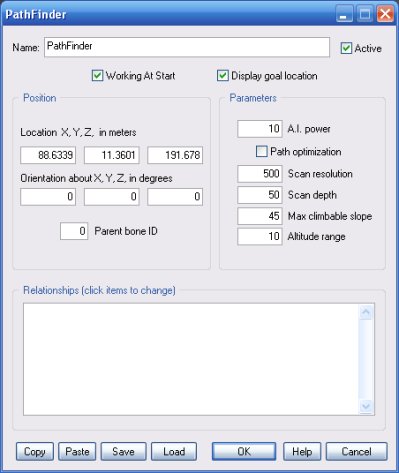
Working At Start
If this option is not checked, the path finder will only operate after the object is
started by another object,
like for example
EventOnInput.
Display goal location
Check this option to visualize the PathFinder object geometry run-time (a red star).
This will be the goal that the PathFinder object will try to lead the character to.
Parameters
A.I. power.
The time the A.I. algorithm will take to sort the path out depends on scene complexity and the amount of processing power you assign to
the task. The minimum amount of processing power that you can specify is 1. There is no maximum, but setting this value too high will
affect the framerate in a way that depends on the system your project is running on.
Path optimization.
The PathFinder isn't guaranteed to find the shortest path to the goal, but it will do so more often than not.
If this option is checked, an additional algorithm will be used to raise the probability that the
chosen path will be the shortest. The trade-off is additional processing power usage, which may affect frame-rate.
Scan resolution.
Raising this parameter may help find paths in a very complex scenery, but it may also increase the delay at
start-up or after the goal has moved to a different location or the current path gets blocked.
Scan depth.
The bigger the factor, the sooner the PathFinder object will react to obstacles suddenly blocking the current path.
Setting this value too high though, will likely cause severe, intermittent processing slowdowns, where the terrain
or obstacles are modeled with a high number of polygons.
Max. climbable slope.
The terrain's gradient angle, in degrees, above which the terrain will be considered an obstacle to avoid.
Altitude range.
When approaching climbable stairs (modeled as ramps) or steep slopes, even if they are above the maximum climbable gradient,
the path finder may still try to reach their top, if the goal is placed there and there is no other way to it.
If the altitude range doesn't include the stairs/slope top though, the area will be considered inaccessible.
The range is in meters and always computed from the current position of the path following object.
Relationships
This list defines how the PathFinder object relates to the objects linked to it.
The following relationship types are supported:
IGNORE. Do nothing.
CHARACTER. The run-time location of this object is used by the path finder
to determine where the path follower is. This is usually the Character object,
but it can be anything, depending on how you are using the PathFinder object.
For example, if you are 'following' the path (PathFinder object location) by using a script,
you will probably need to specify a script-controlled SkinMesh object as CHARACTER, to give the
PathFinder object a reference.
Specifying more than one object as CHARACTER is not recommended.
OBSTACLE. This object is an obstacle to avoid.
This is typically a Terrain object or a RigidBody object, but it can be
any object which supports collision detection (like Ball or Car).
Objects that don't support collision detection, like SkinMesh, will not work as obstacles.
PARENT. If the PathFinder object is linked to another object AND the other object is set
as PARENT, then, run-time, when the parent moves and rotates, the path finding goal will follow it,
keeping it's relative position as you set it in the Virtual Editor.
The goal can also be attached to animated character bones, where necessary. For more information please
see the Parent Bone ID parameter description in the SkinMesh object's help file.
Other dialog controls
For information about the remaining controls, please
click here.
INTERNAL PARAMETERS
The following internal parameters can be controlled, run-time, by using a
Script:

A.I. power (write-only).
Scan resolution (write-only). Changing this value will cause the path to be re-calculated.
Scan depth (write-only).
Max slope (write-only).
Altitude range (write-only).
Path found flag (read-only). This value is 1 when a valid path has been found, zero otherwise.