WHAT IS
3D RAD?
CLICK HERE
TO FIND OUT!
EventOnContact
This object starts/stops (or shows/hides) objects linked to it when a collision between two objects of a specified set is detected.
Typical usage includes emission of sounds on collisions, activation of pre-defined animations (for example an explosion), point assignments based on how/where an object is hit by a bullet and so on.
This object can itself be started and stopped by other event objects, allowing you to create chains and achieve articulated event management.
For more about event objects in general, please see this tutorial.
Add the EventOnContact object to your project, link it to all the objects you want to monitor for collisions and also to all objects you want to start/stop when a contact is detected.
You link objects together in the Object List (left side of 3D Rad main screen), by selecting an object and then checking the other objects you want to link to it.
To configure the EventOnContact object, double-click it in the Object List to open the following property dialog:
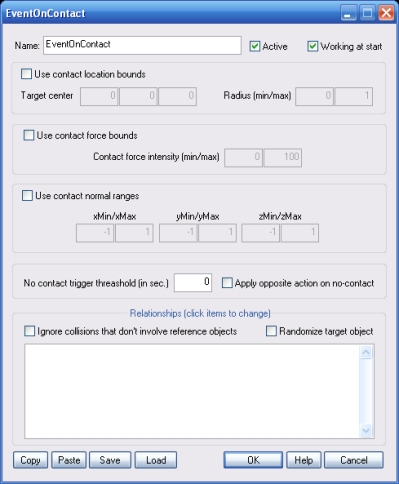
This list defines how the EventOnContact object relates to the objects that are linked to it. The following relationship types are supported:
If this option is checked, only collisions that involve objects marked as MONITOR (REFERENCE) objects will be considered. This feature allows you to use one single EventOnContact where you need collision detection for all objects but you want the action to be triggered only when certain objects in the set collide.
NOTE: this option is ignored if any of the 'Use contact...' options mentioned below is used.
If this option is checked, the specified action is applied to one target object only, picked randomly. If the option is not checked, the action is applied to all target objects instead.
NOTE: this setting is ignored for 'no-contact' actions (see above).
If enabled, the event action is only performed if the collision happened farther than the specified minimum distance and closer than the specified maximum distance (Radius min/max values), from the specified Target center.
The target center location is relative to the center of the colliding, reference object. If none of the two objects colliding is marked as MONITOR (REFERENCE), the contact is not detected.
This feature is typically used to only perform event actions on collisions happening on specific parts of an object.
If enabled, the event action is only performed if the intensity of the forces generated by the collision is within the specified range.
Note that intensity may vary greatly, depending on body masses and velocity.
If none of the two objects colliding is marked as MONITOR (REFERENCE), the contact is not detected.
If enabled the event action is only performed if the X, Y, Z components of the surface normal vector, at contact location, are within the specified ranges.
The surface normal describes the orientation of the surface of the reference body, at contact location. It is a unitary vector perpendicular to the surface. Its orientation is relative to reference object's orientation.
This feature is useful to perform event actions on collisions happening on surfaces with a certain sloping only.
If none of the two objects colliding is marked as MONITOR (REFERENCE), the contact is not detected.
If any 'no-contact' action is specified in the relationship window (see above), it will be triggered only after all monitored objects remain detached (not in contact) for at least the time specified in this input box.
Setting this parameter to zero will completely disable the no-contact sensor, which is recommended if no 'no-contact' actions are set in the relationship window. The sensor always uses some processing power when the time threshold is non-zero.
If this option is checked, the specified action is applied to the target when the contact is detected, and the opposite action is applied to the target when the contact is no longer detected.
Note that this feature only works for objects that are marked, in the Relationships window, as ... ON CONTACT (see above), and only when the No-contact trigger threshold (see above) is non-zero.
Also note that, when this feature is enabled, only START/STOP/SHOW/HIDE actions are supported by the EventOnContact object.
If this option is not checked, the EventOnContact object will not work until it is started by using another event object.
The EventOnContact object has an internal parameter you can access by using other objects like EventOnValue or Script.
NOTE: the EventOnContact object (which in 3d space is an invisible entity) is automatically moved to the exact location of the most recent contact. From a script this location can be captured by using the iObjectLocation() function.
