
WHAT IS
3D RAD?
CLICK HERE
TO FIND OUT!
Character
This object allows you to setup an interactive or A.I. driven walking character supporting collision detection with other objects in the scene, including terrain and static scenery features.
The typical usage requires a spherical RigidBody object, used as basis for character physics, and a SkinMesh object, used either as a simple reference for the CamChase object or as animated aspect for the character (e.g., an animated humanoid, monster, dinosaur etc).
Optionally, the Character object can be linked to one or more target objects, typically used as a reference for A.I. algorithms implemented by using the Script object.
Please see this video tutorial for additional information.
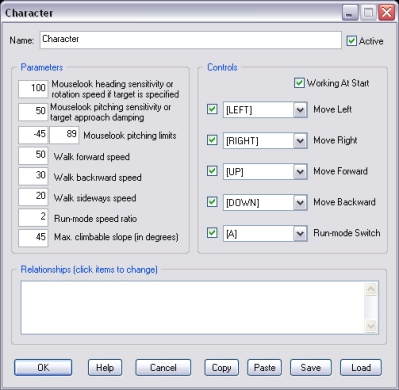
Mouselook heading sensitivity or rotation speed if target is specified. Mouse-based look-around responsiveness (heading). If a target is specified (see Relationships, below) then this parameter determines the character's orientation speed.
Mouselook pitching sensitivity or target approach damping. Mouse-based look-around responsiveness (pitching). If a target is specified (see Relationships, below) then this parameter determines the distance at which the character will stop, before reaching the target.
Mouselook pitching limits. Mouse-based look-around pitching limits (in degrees).
Walk forward speed, Walk backward speed, Walk sideways speed. These parameters allow you to set movement controls responsiveness.
Run-mode speed ratio. Determines the character speed when in run-mode. For example, setting this value to 2 means that the character will move twice as fast as normal mode. Note that values below 1 are permitted, causing the character to move slower than normal.
Max. climbable slope (in degrees). The terrain's gradient angle above which the actor will not be able to climb. Make sure that the terrain object (or any other 'climbable' object) is linked to the Character and set as 'TERRAIN RIGIDBODY' in the Relationships window (see below), as this parameter will be ignored otherwise.
Controls. This group of settings allows you to specify what input devices to use to control the character. Note that to change the available default devices and/or let users of your projects to use any input device, you must add the ConfingureControls object to the project.
If a control is disabled, its input can be dynamically adjusted by using a script (see below).
Relationships. This list defines how the Character object relates to the objects that are linked to it, in the Object List (left side of 3D Rad main screen):
The following internal parameters can be accessed by using a Script object. Note that the corresponding control must be disabled before it can be written run-time.
