
WHAT IS
3D RAD?
CLICK HERE
TO FIND OUT!
Cam1StPerson

This object is a quick way to add an interactive 1st-person view to your projects.
Add the object to your project, place it in the scenery and go. The camera geometry and the green globe are only visible in the Virtual Editor and represent the actor's starting location and collision volume respectively.
Keep in mind that this object is a camera. In general you should make sure no other camera is active in the project, to avoid rendering conflicts.
Also note that this object requires some gravity to walk. Make sure you link it to a gravity object (for example G-Force).
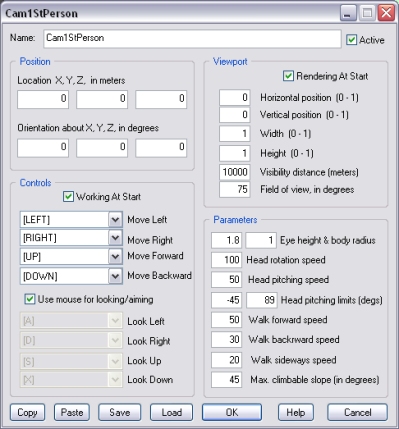
Rendering At Start. If not checked, the camera will not display the scene when the project is launched. Run-time, you can enable rendering by using event objects like EventOnInput.
Horizontal position (0-1). The screen position of the viewport's top/left corner, between 0.0 (left margin) and 1.0 (right margin).
Vertical position (0-1). The screen position of the viewport's top/left corner. Zero is the left margin of the screen, 1 is the right margin.
Width/Height (0-1). Viewport size, between 0.0 and 1.0 (full width/height, as big as the screen).
Visibility distance (meters). Objects beyond the specified distance will not be rendered. Excluding from rendering the distant features of a large scene can improve frame-rate on slower systems.
Field of view, in degrees. The lower the value, the more zoomed the scene.
Eye height & body radius. The first parameter is basically the stature of the character. The second parameter is the radius of the collision sphere for the character. Values below 0.2 are not permitted.
Head rotation speed, Head pitching speed, Head pitching limits (degs). These parameters allow you to set look-around responsiveness and limits.
Walk forward speed, Walk backward speed, Walk sideways speed. These parameters allow you to set movement controls responsiveness.
Max. climbable slope (in degrees). The terrain's gradient angle above which the actor will not be able to climb.
Controls. This group of settings allows you to specify what input devices to use to control the character. Note that to change the available default devices and/or let users of your projects to use any input device, you must add the ConfingureControls object to the project.
